
Zoiper Classic Configuration
1. Download Zoiper from http://www.zoiper.com/
2. Double Click the downloaded installer and you should be able to see a window similar to the image below, click Next
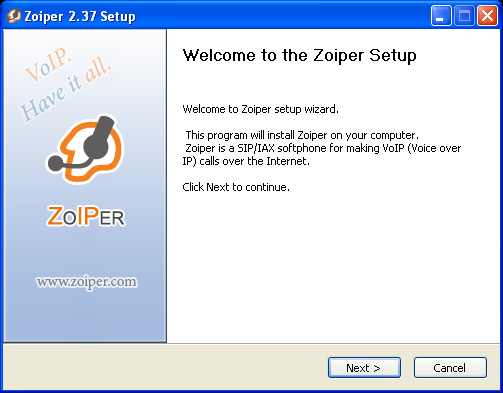
3. Accept the license agreement by clicking I Agree
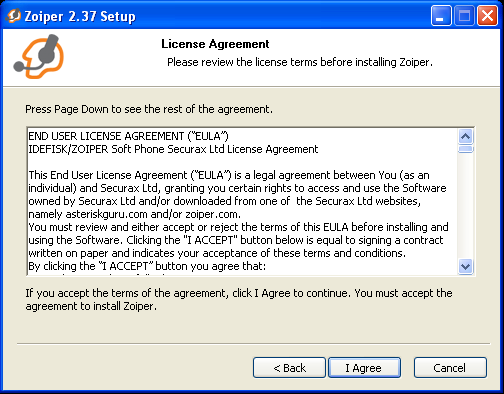
4. Click Next
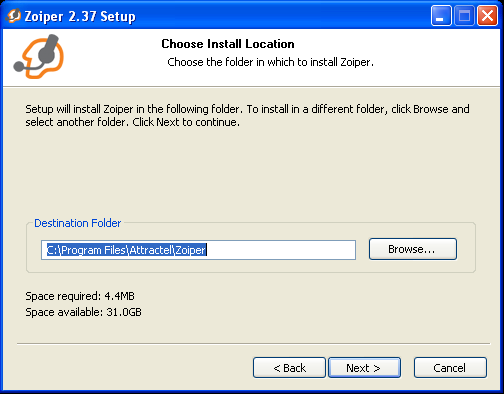
5. Click Next
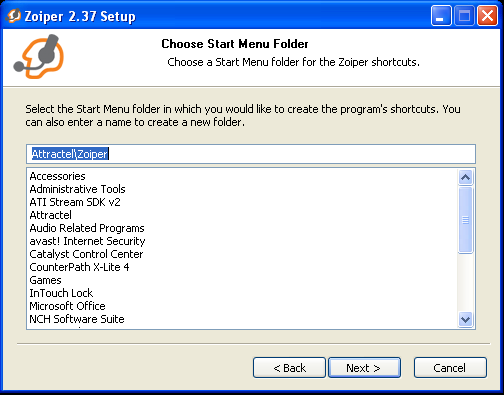
6. Click Install
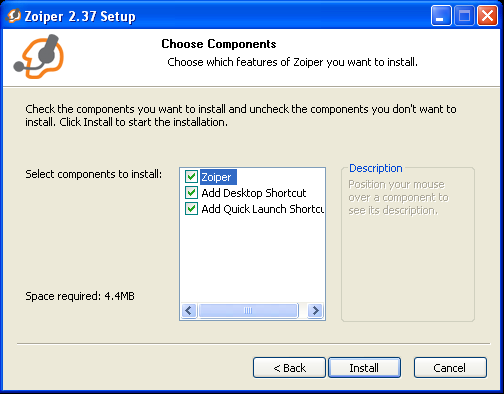
7. Click Finish
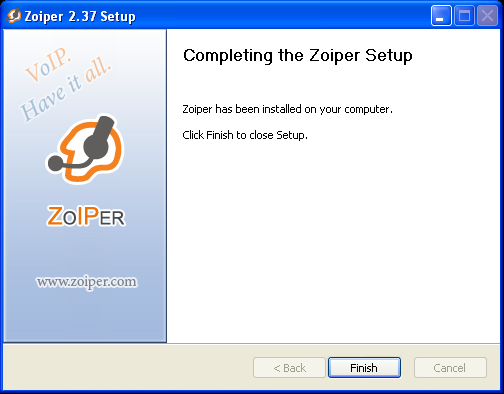
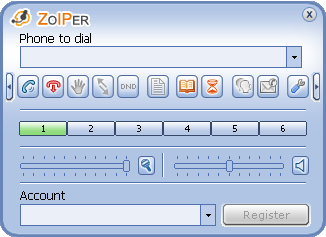
8. Launch Zoiper and the main interface should look like this:
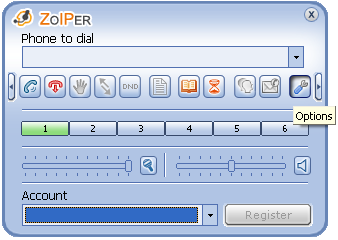
9. To configure an account click the Options button
10. Zoiper is capable of handling SIP or IAX voip protocols, configure your Softphone with the provided credentials then click OK

11. For Audio Option Click Audio codec choose GSM, u-Law, and a-Law and Click OK

goautodial_config_softphone_zoiper_6.png
(31.7 kB)
Carlo Taguinod, 06/01/2011 06:10 am
goautodial_config_softphone_zoiper_7.png
(23.1 kB)
Carlo Taguinod, 06/01/2011 06:10 am
goautodial_config_softphone_zoiper_8.png
(24.1 kB)
Carlo Taguinod, 06/01/2011 06:10 am
goautodial_config_softphone_zoiper_9.png
(25 kB)
Carlo Taguinod, 06/01/2011 06:10 am
goautodial_config_softphone_zoiper_1.png
(33.8 kB)
Carlo Taguinod, 06/01/2011 06:10 am
goautodial_config_softphone_zoiper_2.png
(30 kB)
Carlo Taguinod, 06/01/2011 06:10 am
goautodial_config_softphone_zoiper_3.png
(21.9 kB)
Carlo Taguinod, 06/01/2011 06:10 am
goautodial_config_softphone_zoiper_4.png
(24.7 kB)
Carlo Taguinod, 06/01/2011 06:10 am
goautodial_config_softphone_zoiper_5.png
(24.1 kB)
Carlo Taguinod, 06/01/2011 06:10 am
zoiper_codec_settings.png
(36.7 kB)
Regie Irupang, 02/22/2012 03:45 am